
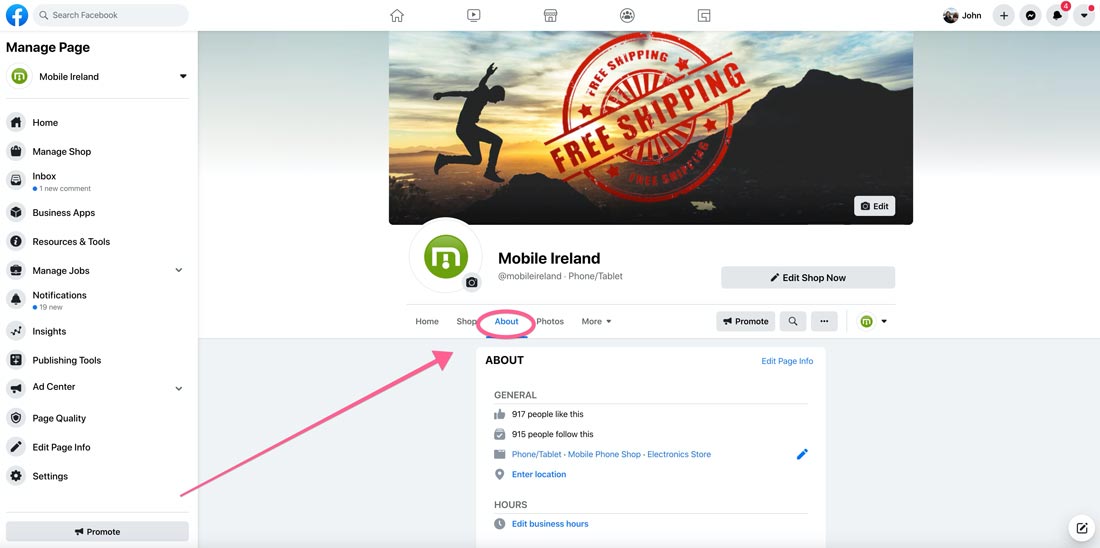
Your Facebook Page ID is the number that identifies your Page to Meta’s ad tools and to anything you connect to it. On desktop it takes five clicks: profile photo, See all profiles, pick the Page, click the Page name under the cover photo, then Transparency and privacy policy. The ID is listed there. The app route is below.
Find your Page ID on a computer
Step 1: Click your profile photo
Log in to Facebook and click your profile photo in the top right.
Step 2: Switch into the Page
Click See all profiles, then select the Page you want to switch into.
Step 3: Open the Page
Click your Page’s name in the left menu to open it.
Step 4: Click the Page name
Click your Page’s name beneath the cover photo.
Step 5: Open Transparency and privacy policy
Click Transparency and privacy policy. Your Page ID is listed there.
Find your Page ID in the Facebook app (iPhone or Android)
Step 1: Open the menu
Tap Menu (top left) or your profile picture.
Step 2: Switch into the Page
Tap Options, then select the Page you want to switch into.
Step 3: Go to the Page
Tap Menu, then tap your Page’s name.
Step 4: Tap the Page name
Tap your Page’s name beneath the cover photo.
Step 5: Open Transparency and privacy policy
Tap Transparency and privacy policy. Your Page ID is listed there.
If the Page does not appear under See all profiles, you are not an admin of it. Ask whoever set the Page up to add you under Page access before going further.
Where you will actually need the Page ID
Most people searching for this are in the middle of setting something up. These are the usual reasons, in the order we see them:
| Setting up | Why it asks for the Page ID |
|---|---|
| Meta Ads Manager or a Business portfolio | To attach the Page to the ad account so ads run in the Page’s name |
| Meta Pixel or a dataset | To link website events to the Page and ad account |
| Instant Forms (lead ads) integrations | So the CRM can pull leads from the right Page |
| WhatsApp Business or Messenger automations | To connect the inbox to the Page |
| Review, booking and chat widgets | Third-party tools identify the Page by ID, not name |
If you are doing this for a tradesperson, clinic or other local service business, the Page ID is the easy bit. The part that decides whether the ads pay is what happens after someone enquires: who answers, how fast, and whether the lead gets followed up. That is the system Glassfull Media builds, and the Meta ads management page explains how the ads and the follow-up fit together.
Page ID, ad account ID and Business ID are different numbers
- Page ID: identifies the Page. Found as above.
- Ad account ID: identifies the account that pays for ads. In Ads Manager it appears in the account dropdown and in the URL as act= followed by the number.
- Business portfolio ID: identifies the business that owns Pages and ad accounts. Found in Business settings under Business info.
Integrations usually ask for one of the three by name. If a form says “Page ID” and you paste the ad account number, the connection fails without a useful error.
Questions people ask
Is my Page ID the same as my Page username?
No. The username is the word in your Page URL (facebook.com/yourbusiness). The Page ID is a number and never changes, even if you rename the Page.
Can anyone see my Page ID?
Yes. It is public information on the Page’s Transparency and privacy policy section, and it is safe to share with a tool or an agency.
I cannot see Transparency and privacy policy. Why?
You are probably viewing the Page as a visitor rather than switched into it. Go back to step 2 and switch into the Page first.
Do I need the Page ID to run Facebook ads?
Not by hand. Ads Manager links the Page by name when you create the ad. You need the number when a third-party tool, a Pixel setup or a CRM asks for it.
Setting this up for ads? Get a free check first
Before spending on Meta ads, it is worth knowing how your business looks to someone searching right now and what happens when they ring. Glassfull Media’s free online marketing report checks that in two minutes and emails the fixes. Or ring (01) 265 7999 and hear the AI front desk answer.
